
Documentation / Using the app
PDF reports
Building a client-ready report, what each section contains, and how branding is applied.
Reports produce a client-ready PDF for a chosen domain and date range. They are the deliverable most agencies attach to a monthly retainer.
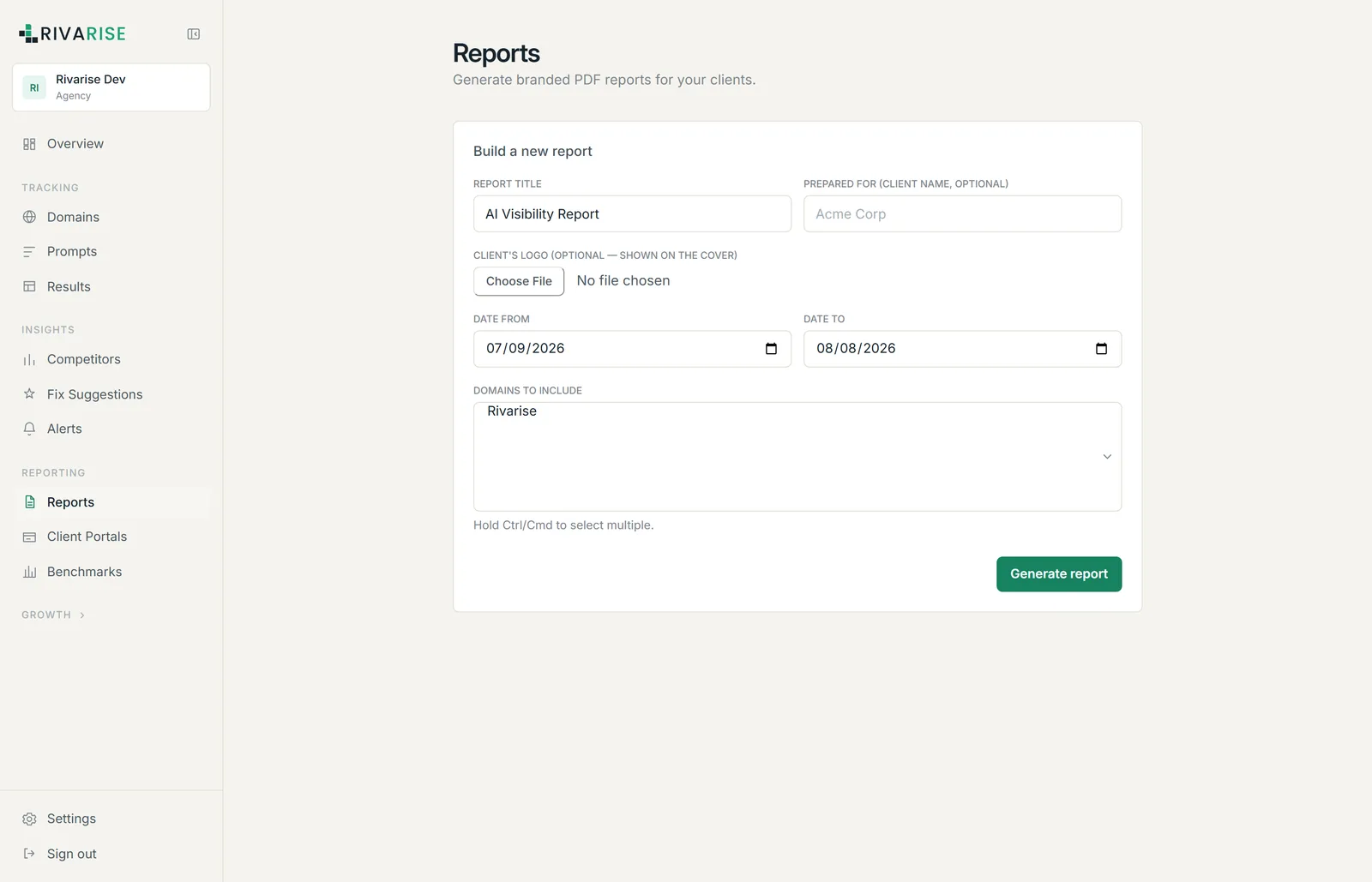
Building a report
- Report title. Appears on the cover. Something like "AI Visibility, October" reads better than the default.
- Prepared for. The client name, optional. Shown on the cover when set.
- Client logo. Optional, shown on the cover. Use this for a client one-off; for permanent branding across every report, set it once under White-label instead.
- Date from and Date to. The reporting window. It cannot extend past your plan history retention.
- Domains to include. Hold Ctrl or Cmd to select more than one.
- Generate report. The PDF is produced and made available to download.
What is in the report
| Section | Contents |
|---|---|
| Executive summary | Headline visibility, PPS, and movement over the window. Written for someone who reads only this page. |
| Engine breakdown | Citation rate per engine, showing where the brand is strong and where it is invisible. |
| Top prompts | The questions performing best, and the ones performing worst. |
| Opportunity gaps | Prompts with low or zero citation rate, which is the argument for the next piece of work. |
| Competitor analysis | Share of answer against the competitors tracked in the workspace. |
| Fix suggestions | The current open recommendations, with severity. |
| Appendix | The underlying data behind the summary figures. |
Branding
With White-label configured, the report carries your brand name, logo and accent colour instead of Rivarise. Set that up once rather than uploading a logo per report.
Availability
PDF reports are available from the Business plan upward, together with client portals, white-label branding and API access.
Practical notes
- PDFs are static. Once generated, a report never changes, which is what makes it safe to send to a client. Deleting a domain later does not alter a PDF already produced.
- Report monthly, not weekly. Answer engines move slowly enough that a weekly report mostly shows noise.
- Pair it with a portal. The PDF is for the meeting; the portal answers the questions that arrive between meetings.
- Keep the window consistent. Comparing a 30-day report to a 45-day one makes the movement meaningless.