
Documentation / Account and billing
White-label branding
Replacing the Rivarise name, logo and accent colour on client portals and PDF reports.
White-label branding replaces the Rivarise identity with yours everywhere a client sees it: client portals and PDF report covers.
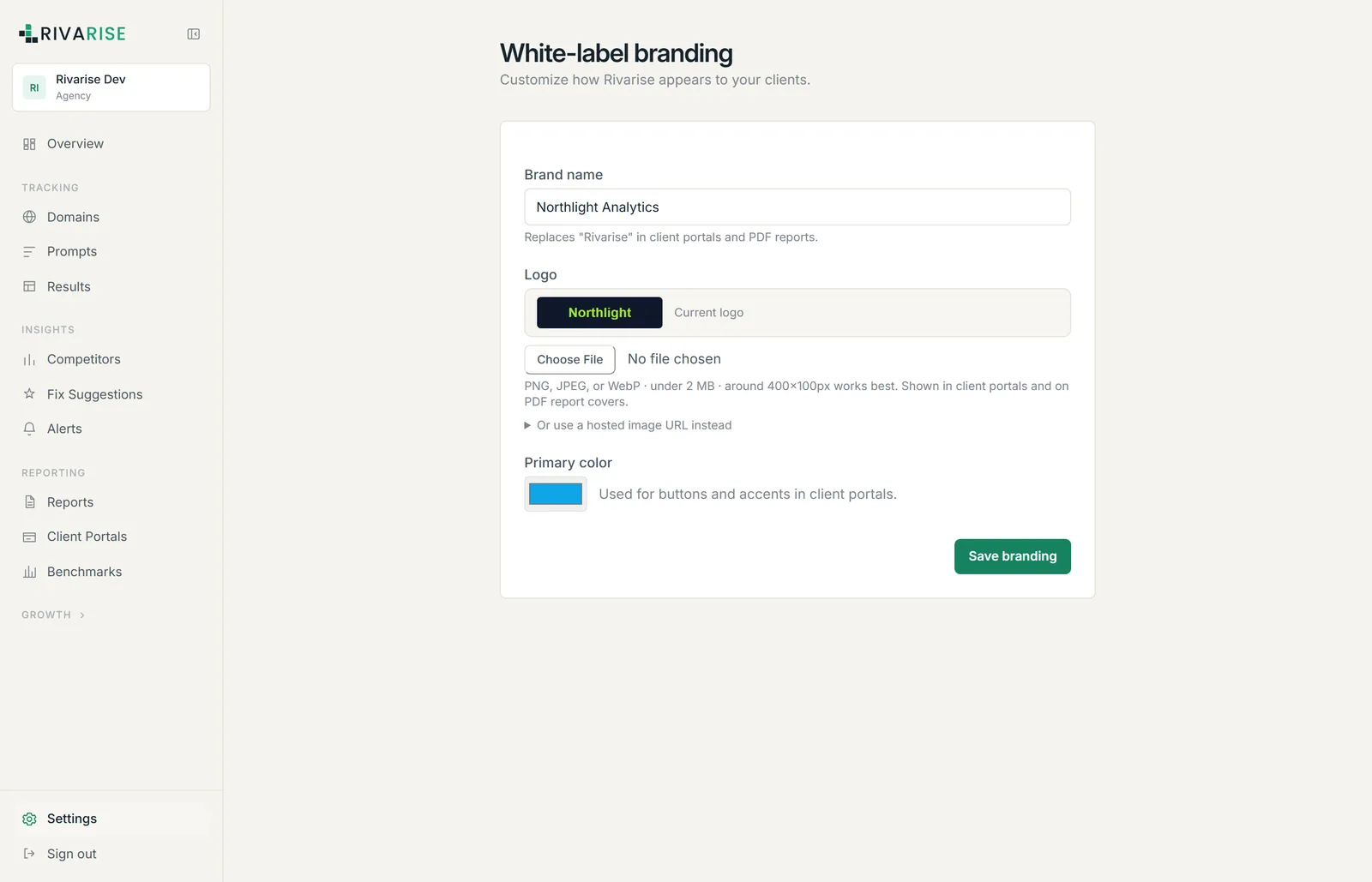
The three settings
| Setting | What it does | Requirements |
|---|---|---|
| Brand name | Replaces the word "Rivarise" in client portals and PDF reports. | Plain text. |
| Logo | Shown in client portals and on PDF report covers. | PNG, JPEG or WebP, under 2 MB. Around 400 by 100 pixels works best. |
| Primary colour | Buttons and accents in client portals. | A colour value. Pick one with enough contrast against white. |
A hosted image URL can be used instead of uploading a logo, which is convenient if your brand assets already live on a CDN.
Where branding applies
- Client portals. Your name, logo and accent colour.
- PDF reports. Your name and logo on the cover.
- Not the application itself. The workspace you and your team sign into remains Rivarise-branded. White-label covers what clients see, not what you see.
Precedence
A logo set on an individual report or portal is for that specific client and takes precedence there. White-label settings are the default applied everywhere else. Set white-label once for your agency identity, then override per client only when the client wants their own logo on the cover.
Availability and reselling
White-label branding is available from the Business plan upward.
Reselling requires the Agency plan. Branding the output is a Business feature. Packaging Rivarise into a service you sell to third parties requires the Agency plan under the Terms of Service. Those are two different things.
Practical notes
- Use a transparent PNG so the logo sits correctly on both the portal background and the report cover.
- Check contrast on your accent colour. A pale brand colour makes portal buttons hard to read.
- Preview a portal before sending it. Create one for an internal domain first and open the link yourself.