
Team members and roles
The four roles and what each can do, inviting members, and how seats are counted.
Team members share a workspace. Every member sees the same domains, prompts and results; what differs is what they can change.
The four roles
| Can do | Owner | Admin | Member | Viewer |
|---|---|---|---|---|
| View dashboards and results | Yes | Yes | Yes | Yes |
| Export CSV, download reports | Yes | Yes | Yes | Yes |
| Add and edit prompts, domains, competitors | Yes | Yes | Yes | No |
| Create alerts, reports and portals | Yes | Yes | Yes | No |
| Invite and remove members | Yes | Yes | No | No |
| Change workspace settings and branding | Yes | Yes | No | No |
| Change the plan and billing | Yes | No | No | No |
| Delete the workspace | Yes | No | No | No |
There is exactly one Owner: the person who created the workspace. Give clients and executives Viewer, or better, a client portal, which needs no seat at all.
Inviting someone
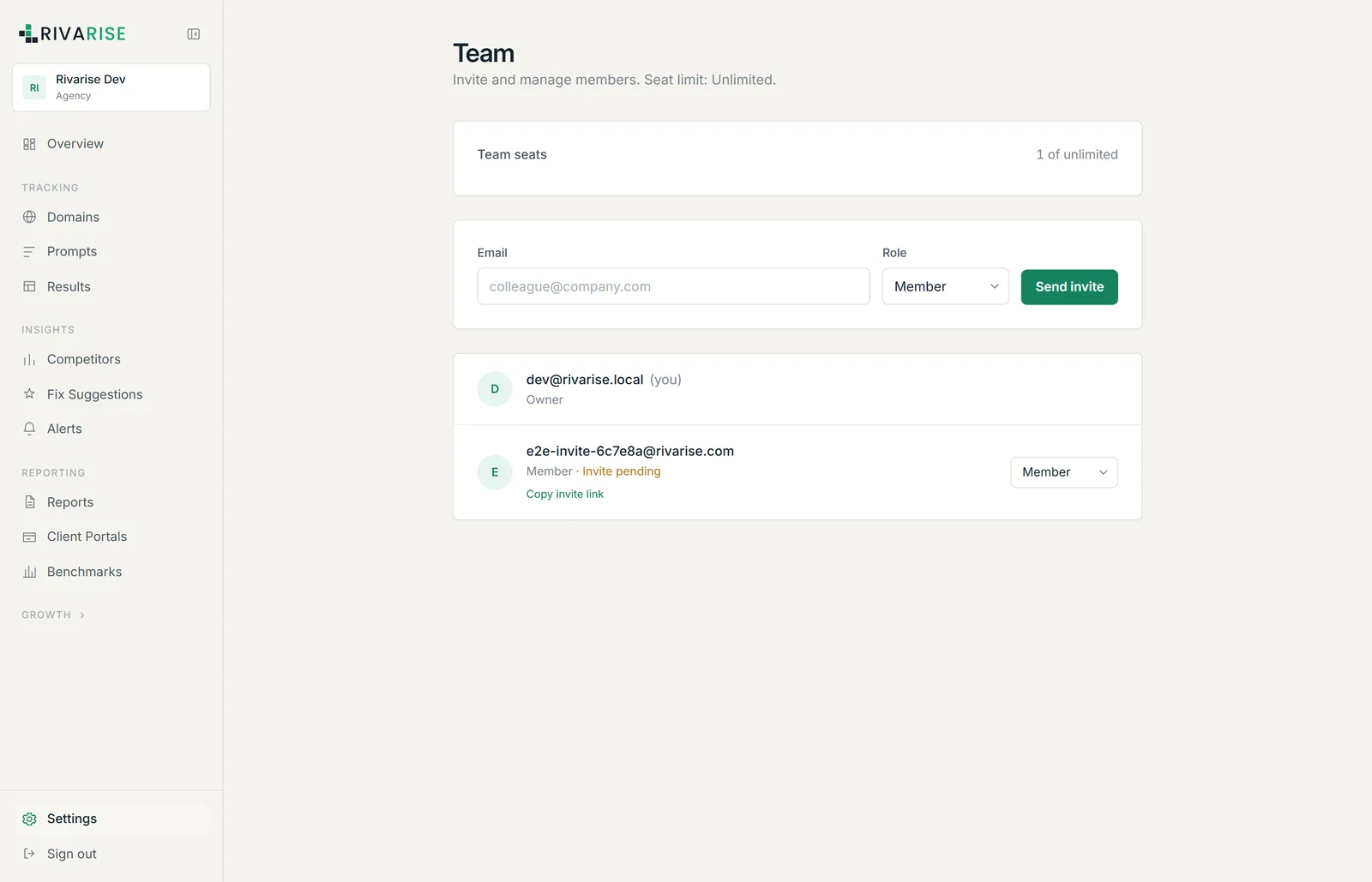
- Open Settings, then Team Members.
- Enter their email and choose a role of Admin, Member or Viewer.
- Send invite. They receive an email link. The row shows "Invite pending" until they accept.
- If the email does not arrive, use Copy invite link and send it yourself. It is the same link.
How seats are counted
A seat is a person, and a pending invitation occupies one. Free and Starter include 1 seat, Growth 3, Business 5, and Agency unlimited.
Removing a member
Click Remove on their row. Access ends immediately and the seat frees at once. Anything they created stays in the workspace: prompts, alerts, reports and portals are workspace-owned, not user-owned, so nothing disappears when a person leaves.
Single sign-on
On the Agency plan you can connect a SAML identity provider so your team signs in with company credentials and seats are managed centrally. See Enterprise SSO.